
A Samsung Galaxy that vibrates in the pocket, receives notifications, but whose screen remains completely black: this situation is more common than one might think, and the panic that accompanies this moment often leads to unnecessary actions. Before rushing to a store or ordering a replacement screen, several checks can help distinguish a simple software bug from a real hardware failure.
Ambient light sensor and false black screen on Samsung
We start with the most misleading case. On several Galaxy models, the ambient light sensor, located near the front camera, can malfunction and lower the brightness to the point of making the display invisible to the naked eye. The screen works, but appears to be off.
To check, simply place yourself in a very dark room. If a glow or interface elements appear, the problem lies with the sensor or the automatic brightness setting. In this case, try to manually increase the brightness via the shortcuts, or disable adaptive brightness in the display settings.
This diagnosis takes a few seconds and avoids a forced restart that could interrupt an ongoing backup or close background applications. This is the first thing to test, before any other actions.
For a more comprehensive overview of software and hardware causes, you can read on Android Party a dedicated guide to this specific problem.
Forced restart Samsung: the right combination depending on the model
If the screen remains black even in darkness, we move on to the forced restart. The action is simple but must be held long enough: press and hold the Power and Volume Down buttons for twenty seconds. Not ten, not fifteen. A full twenty seconds, even if nothing seems to happen at first.
This forced restart does not delete any data. It cuts power to the system and restarts the boot cycle, which is enough to resolve most software freezes (crashed app, frozen system process, interrupted update).

One point that is often forgotten: if the phone is plugged into a charger at the time of the freeze, unplug it before forcing the restart. Some devices do not respond properly to the button combination when they are charging.
When the forced restart does nothing
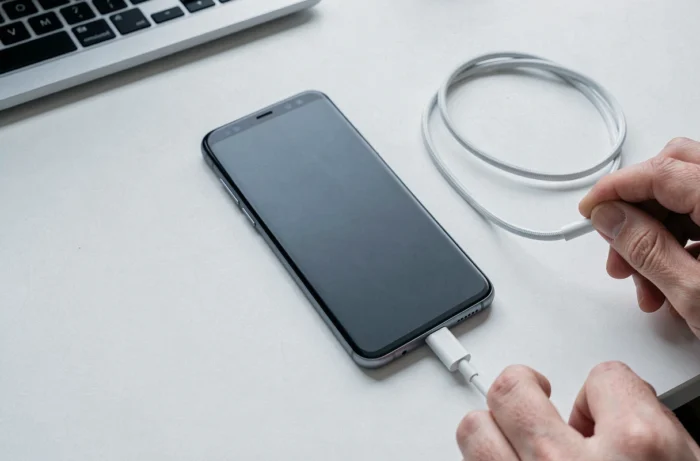
If the screen remains black after two attempts at a forced restart, check the charge. A smartphone with a completely drained battery may show no signs of life for several minutes after being plugged in. It should be left connected to the original charger (not a questionable third-party cable) for at least fifteen minutes before trying the action again.
Removing all accessories (magnetic case, OTG cable, SD card) also eliminates a sometimes underestimated source of hardware conflict.
Android recovery mode: access troubleshooting without a functional screen
Recovery mode remains the last resort tool before physical repair. It is accessed by simultaneously holding the Power and Volume Up buttons (on most recent Galaxy models) while the phone is off. A text menu appears, navigable with the volume buttons.
Two options deserve attention:
- Wipe cache partition: clears temporary system files without touching personal data. This is the option to test first when the black screen occurs after an update or the installation of an app.
- Reboot system now: restarts the system normally after clearing the cache, which is enough in many cases to restore functional display.
- Factory reset: deletes all data on the phone. This should only be used if nothing else has worked and the data is backed up elsewhere.
Recovery mode works independently of the Android system. Even if the software is corrupted, this menu remains accessible as long as the hardware is not damaged.
Backups and data: what to check before any repair
Samsung warns that data may be erased during a repair at an authorized center. The Maintenance mode, designed to protect personal information during the intervention, is configured from the phone settings. The problem: when the screen is black, it is often impossible to activate it.
This is why the question of backups arises before the failure occurs. Samsung Cloud, Google Drive, or a local backup on PC via Smart Switch are the three main channels. If no recent backup exists and the screen is unusable, it should be reported to the repair center and ask what data recovery options are available before any intervention.
External video output: a limited option
It is sometimes said that a USB-C to HDMI cable allows displaying the phone’s content on an external screen despite the black screen. In practice, DeX or HDMI compatibility varies greatly depending on the model and software version.
Samsung indicates that DeX on PC is no longer supported on certain devices updated to Android 15 and One UI 7, the alternative solution being Link to Windows. Checking the exact compatibility of your model before purchasing an adapter avoids unnecessary spending.
Software issue or hardware failure: how to decide
The Samsung Members app includes a diagnostic tool capable of testing the phone’s components (screen, sensors, battery) and generating an error report that can be sent to support. This option is only usable if the screen remains partially usable, which limits its usefulness in cases of a completely black screen.
In the absence of software diagnostics, a few clues guide the decision:
- The phone vibrates, makes sounds, or receives calls: the system is running, the problem is likely related to the screen or its internal connection.
- No reaction after forced restart and prolonged charging: the motherboard or power circuit may be at fault.
- The black screen appeared just after a fall or contact with water: the hardware issue takes precedence, and a visit to an authorized Samsung center is the logical next step.
A black screen on a Samsung Galaxy is resolved without repair in the majority of cases, provided the steps are followed in order and not jumping straight to factory reset. The ambient light sensor, the forced restart held for twenty seconds, and clearing the cache in recovery mode cover most software scenarios. When these three steps fail, the failure is hardware-related, and the repair process begins with a backup check.